Open advanced search from the results page after you search, or go to x.com/search-advanced. X's help page says it is available when you are logged in.
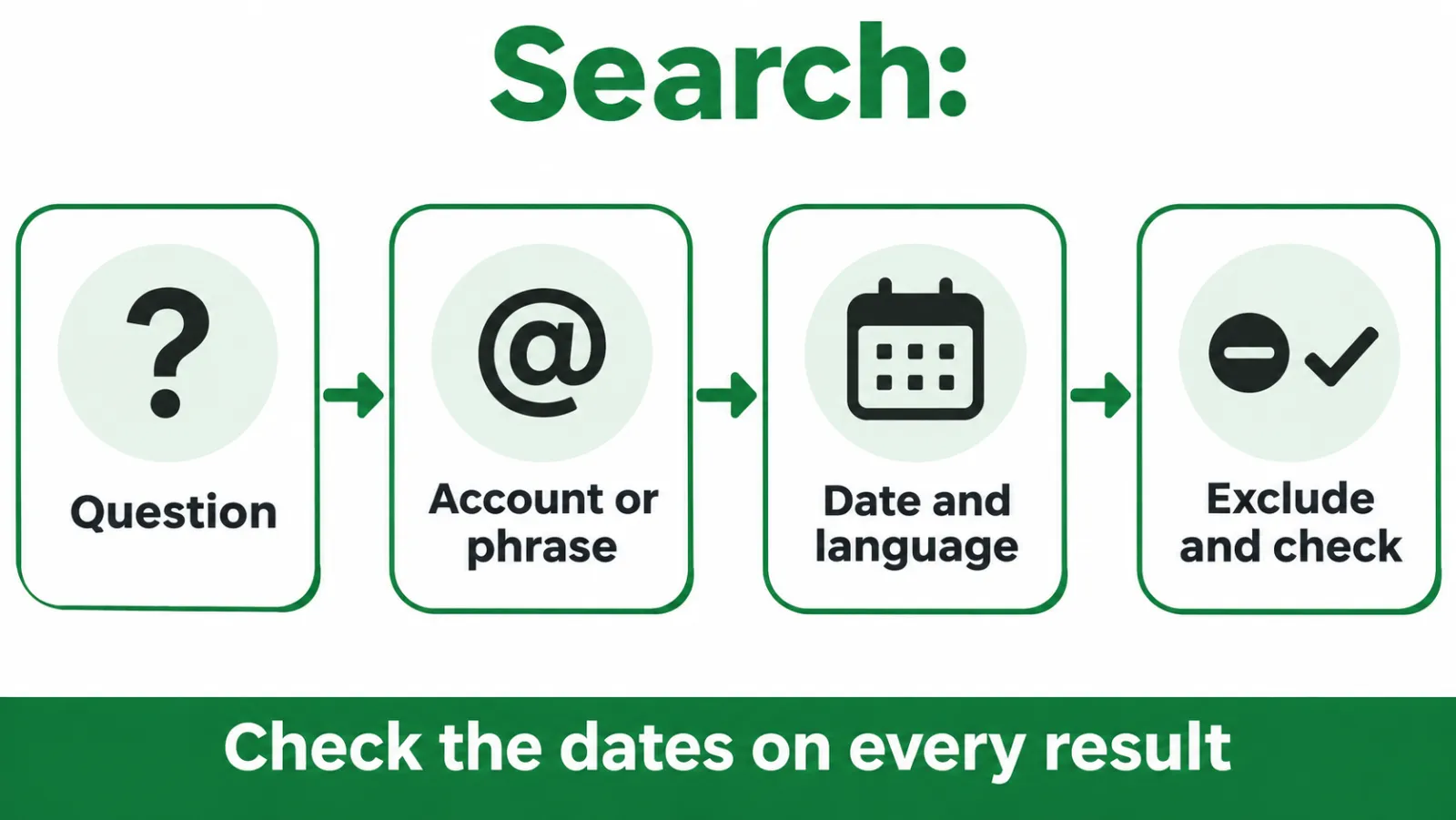
Each box adds one condition: words, accounts, filters, engagement or dates. Use only the boxes that answer your question.
Check the timestamps of a few results against the dates you set before you trust the list.
Write down the boxes you filled in, because the help page does not describe saving a search.
Type your search in the search bar on x.com and run it.
On the results page, click Advanced search, which sits under Search filters in the upper right. You can also click More options, then Advanced search.
Fill in the boxes you need.
Click Search to see the results.
The form is also at x.com/search-advanced. A read-only visit on 2026-11-10 showed the form, and no search was run from it.
To save a search, look for a control on the form or results page. The help page does not describe saving a search, and the form showed no save control on 2026-11-10. Keep the query text and the date you ran it in your own notes.
Whateachboxadds
The live form on 2026-11-10 has five groups: Words, Accounts, Filters, Engagement and Dates. The help page also describes a Places box with a place dropdown. That box was not in the form snapshot taken on the same day, so check your own form.
The third column names the developer operator with the same meaning, as listed in the X developer operator reference (checked 2026-11-10). It does not show which operator the form writes, and this guide did not run a search from the form to check. For operator names and grammar, see the search operators cheat sheet.
Readingtheboxes
The account boxes answer three different questions. From finds posts an account wrote. To finds posts sent as replies to an account. Mentioning finds posts that include an account name anywhere in the text. A reply to a customer and a post that mentions the customer can be different posts, so pick the box that matches your question.
The Dates box takes a before date, an after date or a range, set with the calendar dropdown. The help page says you can search for posts from any date since the first public post. For a step-by-step on dates, see how to search X posts by date.
Engagement minimums find posts that already got responses. They show what got attention, not what will. The operator names for likes differ between the web search and the X API, which the cheat sheet covers.
PostMine's Feeds page shows fresh public posts to reply to, from up to five keywords, your followers, the accounts you follow, repliers or an X list, with the reply box inline. Search answers a question you write. Feeds gives you a steady supply of conversations to join. Use search when you know the question, and Feeds when you want conversations to join.
Search on X, then click Advanced search under Search filters on the results page, or click More options and then Advanced search. You can also open x.com/search-advanced directly.
Yes. The form has a Minimum Likes box. The web search and the X API use different names for the likes operator, so check the names in the search operators cheat sheet before you copy a query into a tool.
The help page does not describe saving a search, and the form showed no save control when checked. Keep the query text and the date you ran it in your own notes.
Open a few results and compare their timestamps with the range you set. If they disagree, the search did not do what you expected, so do not use the list as it is.
We use cookies for product analytics to improve PostMine. With your consent we also record session replays, including the content you type and view, such as draft posts (passwords excluded), so we can see how the product is used and fix what breaks. Privacy Policy




 Yerkebulan RakhimovNov 9, 20269 min read