Write the query as text, so you can read it and copy it.
I did not verify what the app's filter panel shows, so write any filter that matters into the query text.
Check the timestamps and the accounts on a small screen before you save or act on a result.
For long research sessions, switch to a desktop browser and the full advanced form.
A quick check on X often turns into a longer session without anyone deciding it should. A reader sees a post, wonders whether others said the same thing, types a query, and ends up reading for twenty minutes. A good mobile search habit makes the quick check accurate and keeps the longer session from turning into scrolling.
This guide covers how to write operators that work in the mobile search box, how to use the filters the app offers, how to read results on a small screen without missing the date or the account, and when to move to a desktop browser. It builds on the advanced search guide and the operators cheat sheet. It covers X's web advanced search help page and the X API operator reference, and it does not cover the app's filter panel, which I did not capture on 2026-11-10.
Whatthephonesearchboxaccepts
The query is text you type, and this guide treats it that way. A query such as from:XDevelopers pricing is the kind of query this guide means. The operator reference, checked 2026-11-10, lists from:, lang:, has:images, min_likes: and min_reposts: for the X API, and it does not list since: or until:. X's advanced search help page, checked 2026-11-10, sets date ranges as fields on the web form, so the app's date handling is not verified here. Test date operators in your own app. The operators cheat sheet lists the forms this guide uses.
Two things differ on a phone. The first is typing. Operators are easy to mistype on a small keyboard, and a missing colon or a stray space changes the meaning. The second is editing. A long query is hard to correct on a phone, because the text box is small. Keep queries short on a phone, and move long ones to a note where you can see the whole string.
In the X API, a query made only of conjunction-required operators is not supported. The query guide, checked 2026-11-10, gives has:media alone as an unsupported example, and has:images is also conjunction-required. Add a keyword, a phrase or an account first, and then add the filter. I did not test this rule in the app search box.
Thefilterpanelonaphone
X's advanced search help page, checked 2026-11-10, lists four field groups for the web form: Words, People, Places and Dates. It does not describe a mobile filter panel. Check the filters your own app offers, and write any filter that matters to the result into the query text.
The rule for the panel is simple. Use it for the filters it clearly offers, and write the rest as text. A filter you set in the panel is easy to forget, and a filter you type is easy to see in the query and to copy somewhere else. If a filter matters to the result, write it in the query.
The table is a rule for writing, not a list of app features. Whatever the app offers, the query text is the part you can save, check and repeat.
Readtheresultsonasmallscreen
A small screen hides the information you need most. The account name is small, the date is short, and the text of a post can push the timestamp off the first view. Before you act on a result, check three things on each post: the account, the date and whether it is a reply or an original post. If a post is a reply, open its parent, because the reply may only make sense in context.
Scroll slowly through the first ten results, not quickly through the first fifty. A quick scroll shows you the headline posts and misses the quieter ones that often answer the question better. Stop on any post that surprises you, and open it.
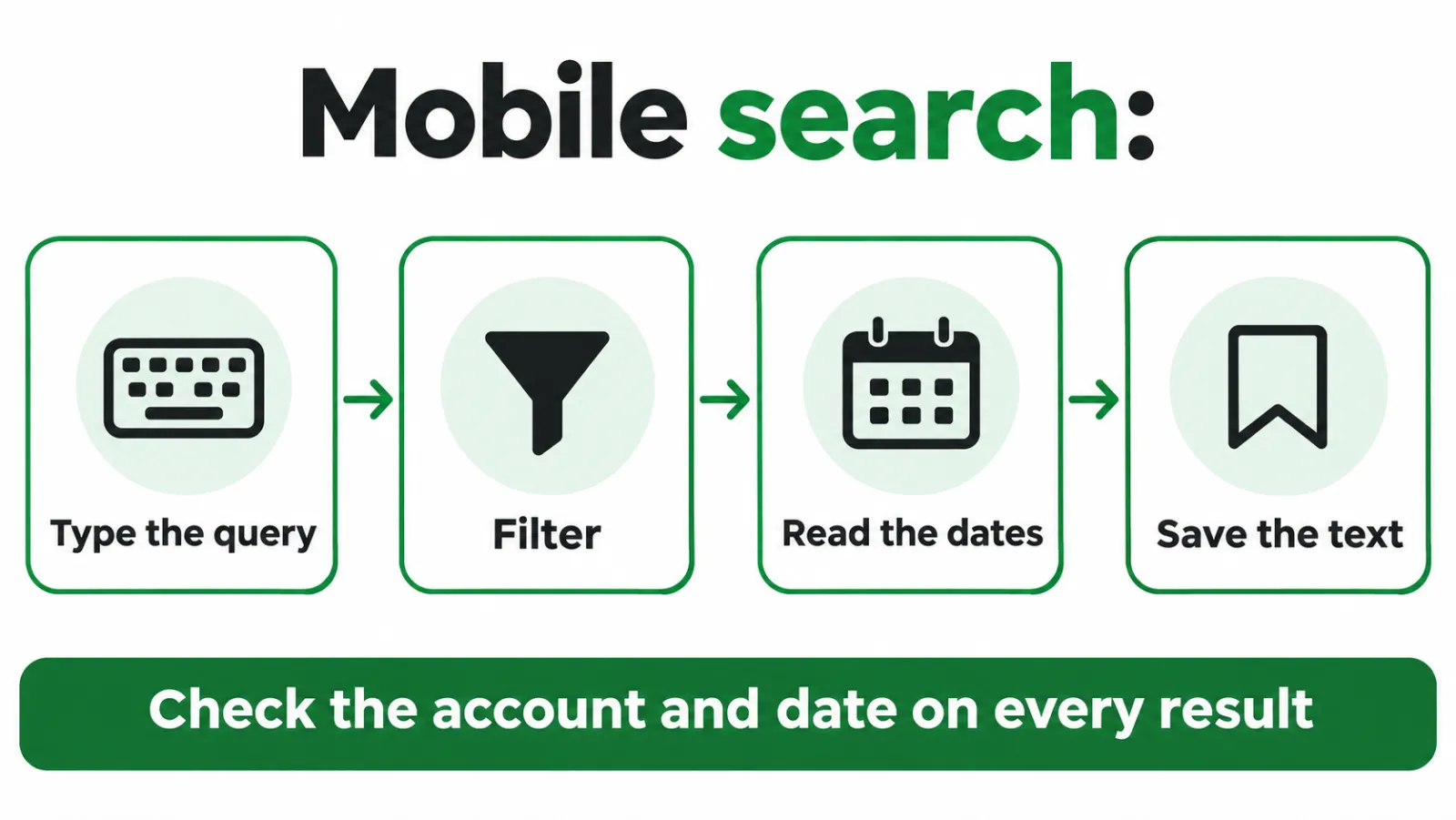
Type the query as text. Keep it short, and write each operator with its colon and no extra spaces.
Check the first three results for date and account. If they do not match the query, fix the query before you read further.
Open the posts that answer the question. Read the post and its replies, not only the headline line.
Note the query and the date. A one-line note is enough, so you can rerun the search later on a desktop.
Switch to desktop for a long session. If you need a long reading session, move to the browser and the full form.
Whentoswitchtoadesktopbrowser
A desktop browser is the better tool for a long research session. The advanced form shows all its fields at once, the results are easier to scan, and a long query is easier to read and edit. If you are building a query with several groups, exclusions and date ranges, build it on desktop, then save the text and read the results on the phone.
The phone is still useful for the quick check. If a question takes two minutes to answer, the phone is enough. If it takes twenty, the desktop is the right place to do the work, and the phone is the place to check it afterwards.
Savethequery,notthescreenshot
A screenshot of a result list tells you what the list looked like on one day. It does not tell you how to run the search again. Save the query text, the date you ran it and the time zone you read the results in. That is enough to repeat the search on any device, and to see whether the results have changed.
The same habit protects you from a common error. A query typed on a phone can contain a typo that changes its meaning, and the result can look plausible. A saved text lets you read the query as written, and correct it before you draw a conclusion.
Commonmistakesonmobile
Mistyping an operator. A missing colon or an extra space changes the query. Read the text before you search.
Leaving a panel filter on. A filter set earlier may still apply. Check the query text, not the memory of the setting.
Reading only the headline. The reply or quote often holds the answer. Open it.
Skipping the date. A small screen hides the date. Check it on every post you rely on.
Scrolling too fast. The quiet posts are often the most useful. Slow down for the first ten results.
Doing a long session on the phone. Move to the desktop when the session grows.
Edgecasesonasmallscreen
Some results are hard to read on a phone. A long thread may show only its first post in the list, and the answer may be in a later part. Open the thread and read it in order before you draw a conclusion. A post with an image may hide the text that explains it, so open the post to read its full text.
Check the destination of any link in a result before you cite it, and do not treat a link in a result as the source of a claim.
Buildthequeryonthephone,stepbystep
A mobile query is easier to get right when you build it in the same order every time. Start with the words that define the topic, then add the phrase that must appear exactly, then the exclusions that remove the noise. Only after that add the account, the language, and the date range. Each step narrows the result, so the list stays readable and you can see which step caused a change.
The developer documentation lists operators for keywords, phrases, exclusions, accounts and language in its operator reference, and the guide to building a query explains how the parts combine. A query you type into the mobile box is read as text. Read the operator reference once, then keep a short list of the forms you use.
The search introduction, checked 2026-11-10, sets the API access tiers. Recent search (API) covers the last seven days and is available to all developers. Full-archive search (API) is available to pay-per-use and Enterprise customers. If you move a query into a tool, check which of those tiers your account has before you rely on the result.
Keep one rule on a phone: change one thing at a time. If a query returns nothing, remove the most recent operator and search again. If it returns too much, add one exclusion. Changing two parts at once makes it impossible to know which change did the work, and a small screen makes that mistake easier to miss.
The search rules matter here as well. The X search policies say that an account can get filtered from search when it repeats or near-duplicates content. A query that returns fewer posts than you expect may be missing those, and the phone gives you no sign of it. When the result matters, run the query again on a different day and compare the lists.
Finally, note the query and the date in the notes app you already use. A search done on a phone is easy to repeat only if the exact text was kept. The saved text is the record; the screen is not.
Whenaphonesearchreturnslessthanyouexpect
Missing results on a phone are not always a sign of a bad query. The X Help Center page on search says that the platform may not show every post in search results, and lists common reasons a post does not appear: protected posts are visible only to approved followers, an unconfirmed email can limit what appears, safe search filters posts with potentially sensitive content, and the platform favours posts that contribute to the conversation in a meaningful way. Check those reasons before you change the query.
Once you find a post worth keeping, save it with bookmarks, which the Help Center describes as private and viewable only to you. That turns a phone search into a short reading list, so you do not need to repeat the query to find the post again. For hashtag queries, the hashtag guide says a hashtag is used to index keywords or topics. Open the conversation guide when a reply matters, because the reply may sit under a post that the result list does not show.
WherePostMinefits
PostMine's Feeds page shows real posts from X and lets you reply inline. A search on X finds the posts for a question you write. The Feeds page shows posts from keywords or people lists you set, and Home shows conversations in your niche worth joining. Use search for the question, then open the conversation worth joining.
The product does not write the search for you, and it does not decide which result is the right one. Those are the parts that stay with you, and the phone is a fine place to do them when the question is small.
The search box takes operators as text. X's developer operator reference, checked 2026-11-10, says the web search names min_faves and min_retweets are not valid in the X API, which uses min_likes and min_reposts. I did not verify the app search box, so test the operator you need in the app before you rely on it.
The query may be parsed differently, a filter may be set on one device and not the other, or the results may simply change over time. Run the same query on both devices and compare the first ten posts.
For long sessions, yes. It shows every field at once and makes long queries easier to read and edit. On a phone, the text box is usually enough for a quick check.
Save the query text in a notes app, along with the date and the time zone you read the results in. That makes the search repeatable on any device.
We use cookies for product analytics to improve PostMine. With your consent we also record session replays, including the content you type and view, such as draft posts (passwords excluded), so we can see how the product is used and fix what breaks. Privacy Policy




 Yerkebulan RakhimovNov 9, 20264 min read