A thread is a series of connected posts from one account. Each post counts on its own.
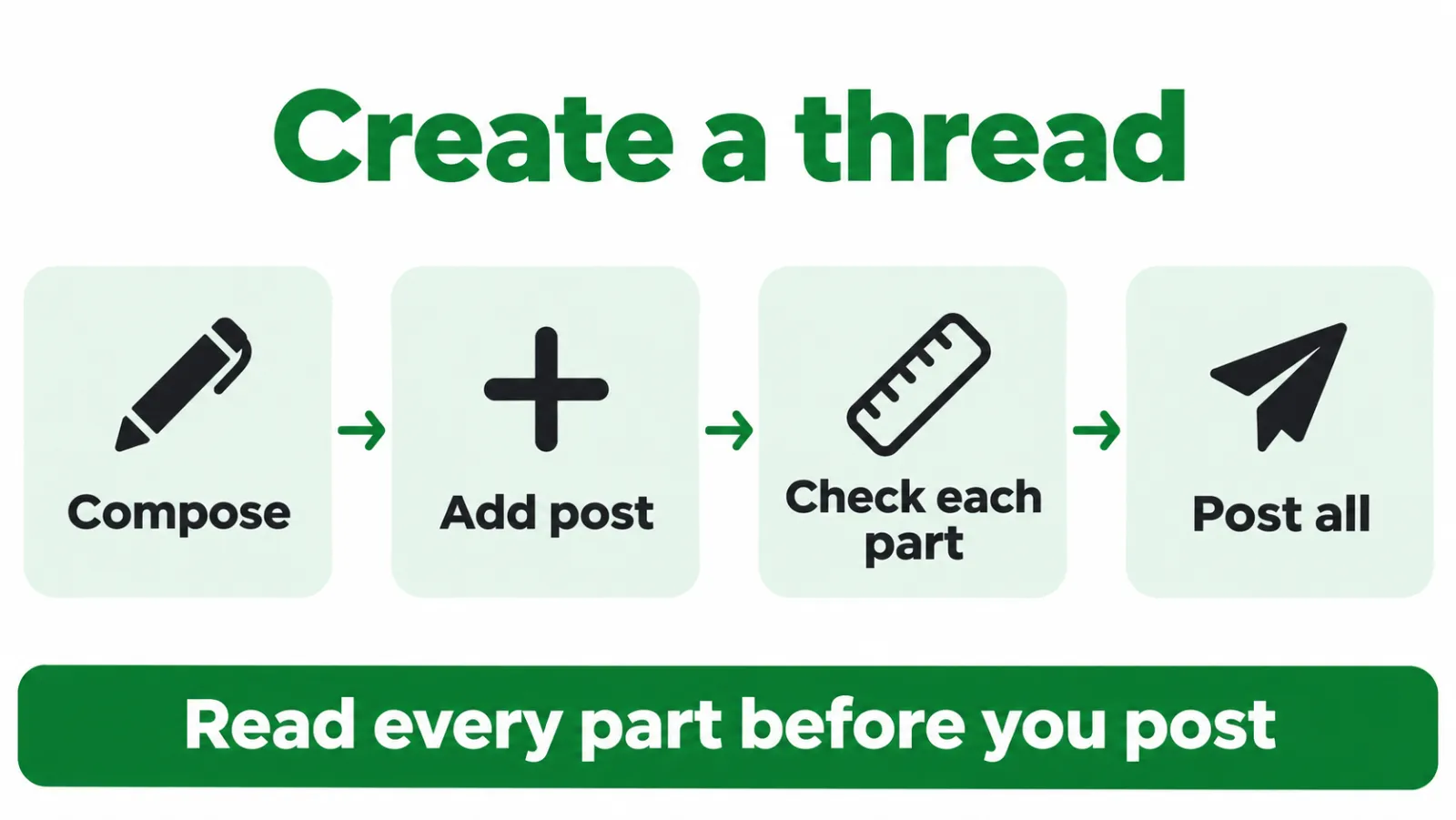
Build the thread in the compose window, then check every part before you tap Post all.
You can add posts to a thread you already published from the thread's own page.
Plan the parts before you type them. The mechanics are easy. The structure is the hard part.
A thread on X is a series of connected posts from one account. Readers see the first post and the replies that follow it, and they can read the whole series in order. The mechanics are simple. You open the compose window, write the first post, add the next post, and publish the lot. The harder part is knowing what each post should say and whether it fits the limit. This guide covers the mechanics step by step, then the checks that keep a thread readable once it is live.
A thread needs three things before the first post: one promise, a number of parts, and a limit to check each part against. The promise is the one thing the reader should take away. The number of parts comes from the promise, not from how much you want to say. The limit depends on your account. The standard limit is 280 characters per post. The X Help Center page on X Premium describes up to 25,000 characters for subscribers; 280 is the standard limit it implies.
A useful habit is to write each part as one line in a notes app first. Keep one fact per line. Then move the lines into compose one at a time. The lines tell you the structure, and the app only handles the publishing.
Tap the compose icon and type the first post. This post is the hook, so it should state the promise and make sense on its own. Readers who see only this post in a feed should know what the thread is about. If the first post only says "a thread", rewrite it before you add anything else.
Keep the first post well under the limit. A hook that fills the whole space leaves no room for a link, an emoji, or a correction if you spot a mistake later.
Step2:Addthenextpost
Tap the highlighted plus icon to add another post under the first. The icon highlights once you have typed something in the current post. Each new post becomes a separate part of the thread, with its own character count. The app keeps them connected, so readers see the series in order.
Add the posts in the order you want them read. It is easier to write them in sequence than to insert a post in the middle later. If you need to insert one, you can still do it, but check the order again after the change.
Step3:Checkeachpartasyougo
After each post, check the count for that post, not the total for the thread. The developer documentation on counting characters says that a link counts as 23 characters, that emojis count as 2 each, and that CJK characters count as 2 each. A post that looks short can be near the limit once the link and the emojis are in it.
Countingrulestocheckineverypart
Item
Howitcounts
Wheretheruleis
Plainlettersandpunctuation
1each
Xdeveloperdocs:countingcharacters
Emojis
2each
Xdeveloperdocs:countingcharacters
CJKcharacters(Chinese,Japanese,Korean)
2each
Xdeveloperdocs:countingcharacters
Anylink
23,whateveritslength
Xdeveloperdocs:countingcharacters
Attachedmediafromtheofficialapp
0
Xdeveloperdocs:countingcharacters
If a part is over the limit, you cannot post it as it stands. Cut the sentence that adds the least, and keep the fact the reader came for. If a part is much too long, it probably holds two facts, and it should become two posts. For the single-post counting rules in more detail, see the character limit guide.
Step4:Attachmediatotherightpart
Attach media to the post it explains, not to the first post by habit. A chart in part two should sit in part two, where the reader needs it. A photo on the hook can help the post stand out in a feed, but it does not replace the text of the hook.
Step5:Readthewholethreadbeforeyoupost
Before you tap Post all, read the thread once from the first post to the last. The X Help Center describes the final step as tapping Post all, which publishes every post in the thread. Once you publish, the parts go live together, so this is the last cheap place to fix a mistake.
Read it for three things. Does each part state one fact or one step? Does the last part give one action rather than a recap? Does every number have a source you can point to? If you cannot answer yes to all three, fix the part before you publish.
Check the order. Read the parts in sequence once, out loud. Fix any part that starts with "also" or introduces a second idea.
Check each part alone. Imagine a reader who sees only that part. If the part depends on the one above it for its meaning, rewrite it.
Check the counts. Confirm that every part is under the limit after links and emojis are counted.
Publish. Tap Post all only when the thread reads right from start to finish.
Step6:Addpoststoathreadyoualreadypublished
Sometimes you want to extend a thread after it is live. The X Help Center describes three ways to do it. Once you have posted a thread, you can add posts from the thread detail page with Add another post, a prompt that only the thread author sees. You can also pull down from the compose window and tap Continue Thread to Add to your last post, or select another post to add a thread to an earlier one. Adding to a live thread is useful for an update, but it changes the reading experience. A reader who saw the earlier parts may not see the new one. If the update changes a fact in an earlier part, consider a new thread rather than editing the story in the middle.
Step7:Knowwhenathreadisthewrongformat
A thread is worth writing when one idea needs several steps that cannot share a single post. It is the wrong format when the idea fits in one post, or when the parts are unrelated. Two unrelated ideas make two threads. A list of tips that do not depend on each other often works better as separate posts, published on different days, than as one long thread.
A quick test helps. Write the claim of the thread in one sentence. Then count the parts that are needed to prove it. If the number is one or two, use a single post. If it is three to six, a thread fits. If it is more, ask whether the thread is really two.
Aworkedexample:athree-partthread(illustration)
This is an illustration, made up for this guide, not a real thread. Suppose the claim is "a short setup post gets read more than a long one." The three parts are a hook that states the claim, a part with the one measurement you took, and a part that gives one action. Each part is one line in the notes app before it goes into compose. The hook is under the limit, the measurement part carries a link counted as 23 characters, and the action part ends the thread without a recap. Before publishing, you read it once in order and once alone. The middle part fails the alone test, because it refers to "the post above". You rewrite it to name the post, and the thread is ready.
Commonmistakeswhencreatingathread
Writing one long post and splitting it. Splitting by character count cuts sentences in half. Split by fact, so each part stands alone.
Forgetting the link cost. A link counts as 23 characters. Count it that way, not by its full length.
Putting the image in the wrong part. A photo attached to the hook confuses readers when it explains part four.
Ending with a recap. The last part should give one action or one thing to remember, not repeat the parts above it.
Publishing without a full read. A full read before you publish is the step that finds the weak part.
Edgecasestocheckbeforeyoupublish
Some threads need a different check. A thread with a number in it needs a source for that number, and the source belongs in the sentence where the number appears. A thread that answers a question from a reply should keep the question in the first part, so a reader who lands on it knows what is answered. A thread that quotes someone should name them and link the original. A thread that includes a screenshot should say in the text what the screenshot shows, so the point survives if the image does not load.
If you use a language with CJK characters, count each part in the app rather than by eye, because each character counts 2. A paragraph that fits comfortably in English may use most of the limit in Japanese or Korean.
The Help Center's page describes the same steps, including the compose icon and Post all, and it is the reference to check when the app layout changes: X Help Center: How to create a thread on X. The Help Center describes a thread as a series of connected posts from one person, and its guide to conversations on X explains how replies connect to the post they answer.
Threadcontrolsafteryoupublish
The thread page has controls that matter after the first post goes out. The X Help Center guide to creating a thread describes Continue Thread, which lets the author add posts to a thread they already published, and Select another post, which picks a post to add. The same guide says that Add another post is available only to the author of the thread, so a reader who is not the author cannot extend it.
The guide also says that a thread with four or more posts is truncated in the timeline with a Show this thread link. That changes how the opening post has to work. Readers who see the first post and the link decide from that post alone whether to open the rest, so the first post carries the weight of the whole thread. Write it as the summary of the thread, not as a teaser that depends on a later post.
Mentions and replies are the other part of the page to read. The mentions and replies guide explains how a post reaches people who were named in it or who replied. If you tag someone in the opening post, check the tag and the wording before you publish.
Saveandcheckathreadafteritgoesout
Bookmarks are the way to keep a thread you want to revisit. The X Help Center guide to bookmarks says that bookmarks let you save posts in a timeline for quick access, and that bookmarks are private and viewable only to you. Bookmark your own thread's opening post after you publish it, so that you can find the thread again when you edit or reply to it.
To check how the thread performed, use the post activity dashboard. Read each post in the thread separately, because a later post can get less activity than the opening one even when the thread is good. Record the numbers the same way every time, so that two threads can be compared.
Each post has to fit the limit on its own, and the counting rules explain how links, emoji and other characters count toward it. Subscribers can write longer posts under the X Premium page, so check which account is posting before you decide the thread must be split. Views are counted under the view counts rule, so a thread you read yourself adds to its own total.
WherePostMinefits
PostMine's composer handles threads as parts. Each part shows its own X character count, so you see the limit for each post while you write it. Each part takes up to four photos, and you can attach a GIF from KLIPY search. Publish opens a review of every part, and you confirm with Slide to publish, so you see the full thread once more before it goes live.
The composer does not decide what the thread says. It keeps the parts, the counts and the review in one place, which is the part of thread writing that is easiest to lose track of in a notes app.
Yes. The X Help Center describes the same flow for the app: tap compose, add posts with the plus icon, then tap Post all. Check the current layout in your own app, because the icons change.
Yes. The Help Center says that, once you have posted a thread, you can add posts from the thread detail page with Add another post, and that this prompt is visible only to the thread author.
Each part is a separate post. Without Premium a post can be 280 characters, and with Premium it can be up to 25,000. A link counts as 23 characters.
No. Use a thread only when one idea needs several steps. If the idea fits in one post, a thread makes it longer without making it better.
We use cookies for product analytics to improve PostMine. With your consent we also record session replays, including the content you type and view, such as draft posts (passwords excluded), so we can see how the product is used and fix what breaks. Privacy Policy




 Yerkebulan RakhimovNov 9, 202617 min read