Find every queued post in one list before you change anything, so you know what else depends on the change.
Change a scheduled post by moving it back to drafts, editing it and scheduling it again, so the edit is read before it goes out.
Reschedule or delete in bulk only after you have read the selection, because a bulk action changes every selected post at once.
Check the failed list and the posted list after every edit, so a changed post does not become a duplicate.
A scheduled post is easy to lose. It sits in a list you do not open, it refers to a date that has passed, and when you finally need to change it, you are not sure what else depends on it. The fix is a routine: find every queued post in one list, change one post at a time, and check the result before it goes out.
This guide covers how to find scheduled posts, how to change one without creating a duplicate, and how to use bulk actions safely. I build PostMine, which this article mentions, and it uses PostMine's queue as the worked example, because the product copy describes those actions directly. Steps for X come from X's scheduled posts help page, checked 2026-11-10, which covers the ads.x.com Posts list and does not describe the mobile app.
Findeveryqueuedpostinonelist
Whether a scheduled post can be changed in place depends on the tool, so check your tool before you plan around it.
X's Edit Post help page covers published posts only: after you publish, you have a one-hour window and up to five edits, so it does not change a scheduled post. For a scheduled post, the tool's own editor is the route. Hootsuite's guide says that for X's native scheduling you open X's Drafts folder and click the post. In Hootsuite itself, click Plan. Buffer's guide describes deleting scheduled tweets. It does not describe editing one. If you import posts in bulk, Sprout's bulk import can add them as Drafts for revising instead of as Scheduled Posts.
Start with the list, not with the post you remember. A scheduled post is only safe to change once you know what else is waiting. Open the list of scheduled posts and read it top to bottom before you touch anything. You are looking for three things: the post you want to change, any post that repeats its topic, and any post that depends on the same link or date.
On X itself, the scheduled posts page describes a list under ads.x.com. X's Help Center page on scheduled posts, checked 2026-11-10, describes the path: open Posts, set the dropdown from Posts: Promoted to Scheduled, then edit or delete from the three-dot menu on a post. The page's Scheduled view shows "all Posts that are currently scheduled", and its video overview says you can schedule organic and Promoted-only posts. A dated observation from 2026-11-09: the x.com web composer showed a "Schedule post" button for a normal account. That help page does not describe the mobile app. Benji Taylor posted on X on September 5, 2026 that scheduled posts are beginning to roll out on mobile (Benji Taylor on X, checked 2026-11-10), so the mobile list may differ from the web list. Check it in your app. The scheduling guide explains how to test the option before you rely on it.
In PostMine, the queue shows Drafts, Scheduled, Posted and Failed, as a list or as a calendar. The Scheduled view holds every post that is still waiting to go out. The calendar is useful for seeing where the gaps are, and the list is better for reading the text. Use the list when you are about to change something.
Open the Scheduled view as a list. Read every post from the top, not only the next one.
Note the posts that share a topic, a link or a date. A change to one of them may need a change to the others.
Check the Failed view. A failed post is not in the Scheduled view, and it still needs a decision.
Check the Posted view for the same text. A change that repeats a post already published is a duplicate waiting to happen.
Changeonescheduledpostsafely
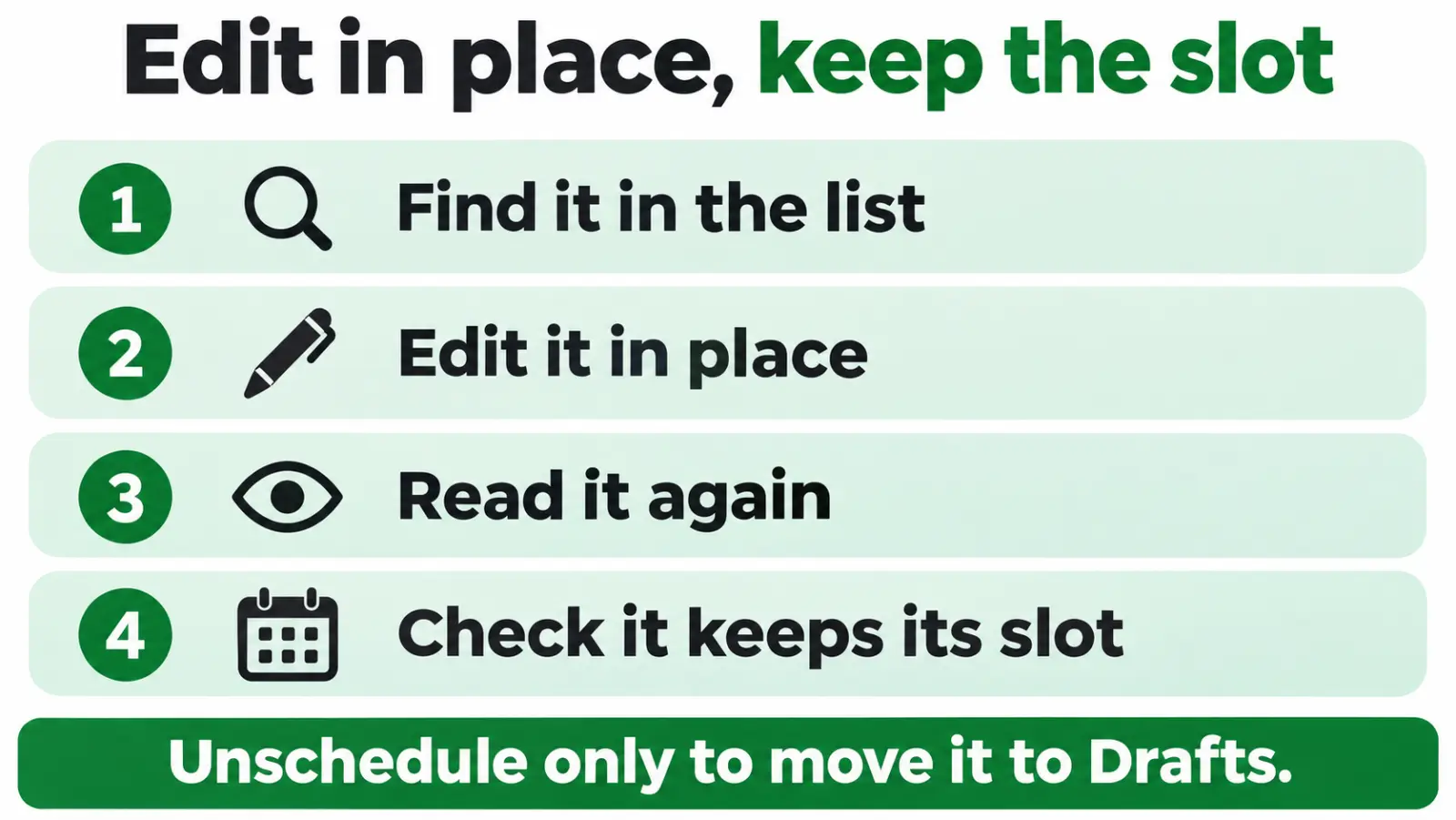
A scheduled post is a promise that has not been kept yet, so change it in a way you can read. In PostMine, a scheduled post can be edited in place and keeps its slot, so the edit stays in the same queue position. Unscheduling is the route back to Drafts, and you use it when a post needs to leave the queue entirely. Read the post once more after the edit, on a larger screen, before you save it.
Step 1
Find the post in the Scheduled view
Step 2
Edit it in place
Step 3
Read it again
Step 4
Check the slot
Step 5
Unschedule only to move it
Two rules keep this route safe. First, change the text before you change the time. A new time on an old text is a common way to publish something you have already decided to drop. Second, read the post once more after the edit, on a larger screen, before you confirm. The edit is the moment a typo or a broken link is most likely to enter the queue.
WhateachactiondoestoascheduledpostinPostMine
Action
Whatchanges
Doesitpublish?
Whentouseit
Editinplace
Thetext,linkorphotochangesandtheslotstays
Onlyatthesameslot
Mostchangestoaqueuedpost
Unschedule
ThepostmovesbacktoDrafts
No
Whenthepostmustleavethequeue
Reschedule(bulk)
Selectedpostsgetnewtimes
Onlyatthenewtime
Whenawholeweekmoves
Delete(bulk)
Selectedpostsareremoved
No
Whenaplaniscancelled
Scheduleagain
Thepostreturnstothequeue
Atthechosentime
Aftertheread-through
Most of the queue behavior in this article comes from PostMine's in-app copy, which describes the Scheduled view, bulk delete, bulk reschedule and the unschedule action that moves a post back to Drafts. X's scheduled posts help page describes the same list: open Posts, set the dropdown to Scheduled, and edit or delete from the three-dot menu. Its video overview says organic posts can be scheduled too.
Rescheduleanddeleteinbulk
A bulk action is fast, and that is why it needs a read first. A bulk reschedule moves every selected post to a new time, and a bulk delete removes them. Both are straightforward on a calm day and hard to undo on the day a launch moves. Read the selection in full before you confirm it, and check the new times against the timezone you are using now.
A typical reason to reschedule in bulk is a moved launch. Suppose a founder moves a launch by two days. Three posts in the week refer to the old date, one refers to a link that is now stale, and two are unaffected. The right bulk action is to reschedule only the posts that still hold, and to unschedule and rewrite the three that refer to the old date. A bulk reschedule of all six would publish stale text at new times, which is worse than the original mistake.
Works
Read the whole selection before a bulk action
Unschedule before you edit
Check the timezone after a bulk reschedule
Remove stale posts instead of moving them
Avoid
Reschedule every post in the week to keep the rhythm
Edit a scheduled post without reading it again
Delete a batch you have not reread
Trust a bulk action to be undoable on the day
Aworkedexample,withillustrativeposts
The following example is an illustration, not a real account. A founder has six scheduled posts for next week. On Monday she learns that a launch date has moved from Wednesday to Friday. Her first step is to read the list. Two posts are about the launch, one repeats the date, one links to the old page, and two are about other topics.
She unschedules the three that depend on the date. She edits the two that mention Wednesday, and the one that links to the old page after she confirms the new link. She schedules those three again for Thursday, Friday and Friday. The two unrelated posts stay in the queue, so she does not touch the rhythm of the week. Before she closes the list, she checks the Posted view for the old date, in case a post from last week already repeats it.
The routine took fifteen minutes. The alternative, rescheduling all six at once, would have published the old date at new times, and nobody would have noticed until a reader did.
Twochecksbeforeyousaveanedit
An edit is a new post, so it deserves the same checks as a new post. A common failure after an edit is not a typo. It is a post that now contradicts the post next to it, or a link that changed when the text did. Two checks catch these before the post goes back into the queue.
The first check is the neighbours. Open the Scheduled list and read the two posts on either side of the one you changed. A change to one post often makes its neighbour look repetitive, or it makes the pair contradict each other, and the neighbour is the first thing a reader compares. If the pair now reads as a set, change the neighbour too, through the same unschedule, edit and schedule route.
The second check is the link and the photo. An edit often adds, removes or changes a link, and a link that is correct in the composer can still lead somewhere unexpected once it is public. Open the link as a reader would, on the device your readers use most, and confirm that the photo is the one you meant. If you changed a photo, check its crop at the size it will appear on the timeline.
Keep a habit of noting what you changed in each edit. One line is enough: the post, the change and the reason. Over a month, the notes show which kinds of edit cause the most follow-up work. If most of your edits are fixing links, the problem is upstream, in how you collect links, and the fix belongs in the batch review rather than in the queue.
Mistakesthatcreateduplicates
Mistake one: editing a post on a second device. If you change the text on a laptop while the phone still shows the old version, the next action may act on the old one. Check the queue on the device you are about to rely on.
Mistake two: unscheduling and forgetting to schedule again. A post in Drafts does not publish. If you unschedule a post for a fix and then move on, the post is lost from the plan. Check Drafts at the end of the session.
Mistake three: republishing a post that already went out. If a post failed and you schedule it again, check the Posted view and your profile first. PostMine reports a failed target without changing a target that already succeeded, so compare the two views before you retry.
Mistake four: deleting a thread partway through. A thread can publish in part. In that case PostMine keeps the post locked with Retry publish, Reuse as new draft and Delete. Choose deliberately. Deleting a partly published thread removes the part you can still control, not the part that is already public.
Mistake five: reading only the next post. The post that is wrong is often the one three days out, because it was written before the last change. Read the whole list once a week.
Three external sources set the limits of this article. The scheduled posts help page covers the native scheduling route in the Composer on ads.x.com. The developer guidelines prohibit identical cross-posting across accounts and non-API automation, and the automation rules bar duplicative posts on one account or over several. A bulk reschedule moves each post once and copies no text, so it is not the cross-posting pattern.
Edgecasesyouwillmeet
Threads. A thread counts as several parts, and each part needs reading in order. PostMine's product copy says credits come back if you delete or unschedule a thread before it posts. Check that before you rely on the number, and read the whole thread before you schedule it again.
Failed posts. A failed post sits in the Failed view, not in the Scheduled view. A failed post is a decision, not a button to press. Read the reason, check the profile, then decide whether the post is still worth sending.
Posts that depend on a date. A post that says "tomorrow" or "this Friday" becomes wrong the moment the plan moves. Rewrite the date into the post or remove it.
Photos and links. A photo or a link can go stale while the text stays the same. Open the link and look at the photo at the size readers will see.
Howthereviewroutinefitsin
Finding and editing scheduled posts is not a one-off task. It is the part of the weekly review that catches what changed. Read the Scheduled list, check the Failed list, compare the Posted list for repeats, and change anything that is stale through unschedule, edit and schedule again. The bulk scheduling guide explains how to review a batch before it enters the queue, and the mobile guide explains the ten-minute check you can run from your phone.
In PostMine, a scheduled post can be edited in place and keeps its slot. Unscheduling moves a post back to Drafts, which is the route when you want to take it out of the queue entirely or rework it as a new draft.
In the queue, which shows Drafts, Scheduled, Posted and Failed in a list or a calendar. Open the Scheduled view to see every post that is still waiting to go out.
It moves to Drafts and does not publish. Schedule it again when it is ready, or delete it if the plan has changed.
On X's Help Center page, scheduled posts sit under ads.x.com: open Posts, set the dropdown to Scheduled, and edit or delete from the three dots. The page's Scheduled view shows "all Posts that are currently scheduled." A dated observation from 2026-11-09: the x.com web composer showed a "Schedule post" button for a normal account.
We use cookies for product analytics to improve PostMine. With your consent we also record session replays, including the content you type and view, such as draft posts (passwords excluded), so we can see how the product is used and fix what breaks. Privacy Policy




 Yerkebulan RakhimovNov 9, 202615 min read