X's scheduled posts help page covers only the Composer on ads.x.com. Benji Taylor's post of September 5, 2026 says scheduled posts are rolling out on mobile, and a September 2026 test found the option on iOS but not on Android. Check your own app before you plan around it.
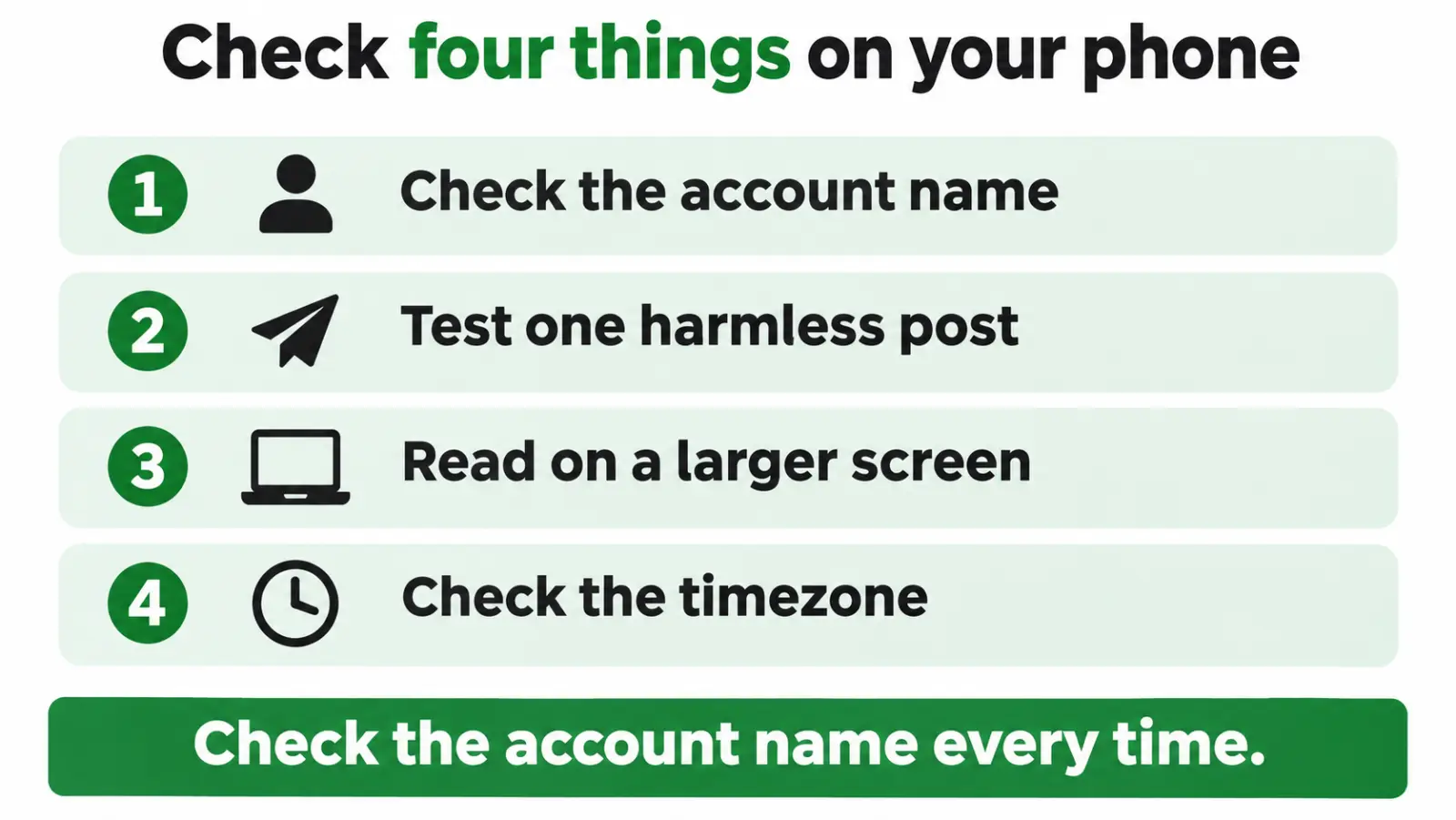
Phones make three mistakes easy, typos on a small screen, the wrong account, and a timezone that changes when you travel.
Test one harmless post from your phone and read it back on desktop before you build a routine.
A mobile routine needs a ten minute weekly check, and that check works best when you can open the queue as a list.
Scheduling from a phone sounds like the easiest version of the habit. You write a post on the train, set a time, and the post goes out while you are busy. The convenience is real. So are the three mistakes that a small screen makes easy: typos you do not see, the wrong account, and a timezone that changes when you move.
This guide covers the options you can check on a phone, the test to run before you trust one, and the routine that keeps a mobile schedule honest. It does not claim that every app does the same thing, because the screens and the account settings differ. It tells you what to check in your own app, and it shows how to keep the result under control.
Checktheoptioninyourownappfirst
Your phone may show a different screen from the web composer, so test it there.
Phone options are the X app, a browser, or a third-party app. The reported mobile rollout is covered below.
Start with what your app shows you, not with what a guide says. Open the X app, start a new post, and look at the compose screen for a schedule option. If you find one, note where it sits and what it asks for. If you do not find one, note that too, because the absence is an answer.
Reported rollout, September 2026. Benji Taylor posted on X on September 5, 2026: "We're beginning to roll out scheduled posts on mobile." The post names no operating system (Benji Taylor on X, checked 2026-11-10). Roboin reported that its tester found scheduled posts in the iOS app but not in the Android app, on a Google Pixel 8 running Android 17 with X app 12.24.0-alpha.02 (Roboin, checked 2026-11-10). That is one Android test on one build. I found no other Android source on 2026-11-10, so Android is not confirmed. X's scheduled posts help page, checked 2026-11-10, describes only the Composer on ads.x.com and has no mobile steps, so the steps below are your own test.
A read-only check on 2026-11-10 loaded x.com at a 390 px viewport in a signed-in browser profile. The home page showed an inline composer with photo and video, GIF, emoji, location, content disclosure, Next and Post controls. The accessibility snapshot showed no schedule control in that inline composer. I did not open the full composer dialog and did not post anything, so this covers the inline view only.
Open the compose screen on your phone. Look for a schedule option. Write down whether it appears for your account and where it sits.
Write one harmless test post. Use plain text with no link and no photo, so the test isolates the scheduler.
Schedule it 15 minutes ahead. Note the time and timezone that the screen shows.
Check the live post on desktop. Confirm the timestamp matches the time you chose, and that the text has no typos from the small keyboard.
Repeat once on a different day. A second run catches problems that only happen at certain times, such as an expired session.
If you cannot find the option, or the test fails, the phone is not your scheduling route yet. Use a tool or a manual reminder instead, and come back to the phone option later.
The mobile claims in this article are limited to the sources above. I build PostMine, which this article mentions. PostMine's website FAQ says you can use PostMine in your browser on mobile or desktop, so the routine below uses the browser. The developer guidelines, checked 2026-11-10, say their rules apply to all apps, including mobile apps. They prohibit auto-likes, unsolicited auto-replies and bulk DMs, and non-API automation such as browser scripting, which results in permanent suspension.
Thethreemistakesaphonemakeseasy
Typos you do not see. A small screen hides the small errors that matter most: a missing word, a wrong number, a link with a letter changed by autocorrect. The fix is simple. Read the post on a larger screen before it goes into the schedule, even if you wrote it on the phone.
The wrong account. If you have more than one account, or a team member uses the same phone, the account name on the compose screen is the only check you have. Read it every time you open the app, and again before you confirm the schedule. A post meant for a product account that goes out from a personal one is a mistake you cannot take back in the reader's memory.
A timezone that moves with you. A phone sets its clock from the place you are, and a schedule set on a trip can be read in a different timezone from the one you meant. Check the time on screen after every trip, and write the timezone in your notes if you post for an audience somewhere else.
Works
Read the post on a larger screen before it enters the schedule
Check the account name every time you open the app
Check the timezone after every trip
Test one harmless post before you rely on the option
Avoid
Schedule a link you read only on a small screen
Trust the account name without looking
Set a post while travelling and forget the timezone
Assume a phone option works because the desktop one does
Aworkedcommute,withillustrativetimes
The following commute is an illustration, not a real account. A founder drafts a post on the train on Monday morning, reads it again on the desk at lunch, and schedules it for 10:00 on Tuesday. On Tuesday she is in another city for a conference. The phone still shows the timezone of the city she left, and the post goes out at the hour she chose on her phone, while her own readers are one hour later than she expected.
She could have avoided the mistake with one check. Before she scheduled the post, she could have written the timezone next to the time in her note. On the trip, she could have checked the timezone on screen before setting any new post.
Amobileroutine,stepbystep(illustration)
When
Where
Whatyoudo
Whatyoucheck
Commute
Phone,draftsonly
Writethedraftandleaveitunscheduled
Nothingispublishedyet
Lunch
Desktoporlargescreen
Readaloud,fixtypos,openeverylink
Theaccountnameandthetimezone
Scheduletime
Phoneordesktop
Settheslotandconfirm
Thetimeandthetimezoneonscreen
Afteratrip
Phone
Rereadthequeueasalist
Thetimezoneofeachupcomingpost
Weekly
Phone,tenminutes
Openthequeuelistandthefailedlist
Staleposts,brokenlinks,missedslots
Commute
Draft on the phone, leave it unscheduled
Lunch
Read it on a larger screen
Before confirming
Check the timezone and the time
After a trip
Recheck the queue
Wherethephoneroutinebreaks
Mistake one: scheduling a long thread from a phone. A thread is several posts, and each part needs reading in order. On a phone, the parts are easy to skip. Read the thread on a larger screen before it enters the schedule.
Mistake two: relying on notifications. A notification tells you that something happened, not what the post said. If you rely on a phone alert to tell you a scheduled post went out, you may never see the failed ones. Check the failed list during the weekly review.
Mistake three: changing a post in a hurry. A fix made on the phone during a busy moment is the fix most likely to introduce a new error. Make the change, then read the whole post again before you save it.
Mistake four: forgetting that the phone is not the queue. A phone shows a small slice of the schedule. If you only look at the next item, you will miss a post that is wrong further down. Use the list view once a week, not only the next post.
Atenminuteweeklycheckfromyourphone
The weekly check is where a phone routine proves itself. Scheduling on a phone is quick, and quick decisions are where stale posts and missed slots come from. A check that takes ten minutes, once a week, catches what the quick decisions missed. Do it on the same day each week, and do it in the same order each time, so you notice when something is missing.
Open the queue as a list, not as a calendar. On a small screen, the list shows every upcoming post with its time. A calendar can hide a post under a busy day.
Read the next three posts in full. These are the ones that go out first, so they get the closest read. Check the account name and the timezone on each one.
Open every link in those three posts. A link that worked last week can redirect or break. Open it as a reader would, on the phone you are holding.
Open the failed list. A failed post does not go out, and it does not announce itself loudly. Check the reason, then decide whether the post is still worth sending.
Look for gaps in the week. An empty slot is fine if you left it open on purpose. An empty slot you forgot to fill is a missed opportunity you can fix now.
Delete or move anything stale. A post about a date that has passed, a launch that has moved or a price that has changed should not wait for the next check.
The check takes ten minutes when it is routine. It takes an hour when you skip it for a month and then try to catch up on a bad afternoon. Keep it short, and keep it on the same day, so it becomes part of the week instead of a rescue.
A note on the failed list. A failed post is not a reason to publish the same text a second time. Before you retry anything, check your profile for the text. If the post went out after all, retrying it creates a duplicate. If it did not go out, read it again first, because the reason it failed may also be a reason to change the post. PostMine keeps a failed post visible in the Failed view, and it reports a failed target without changing a target that already succeeded, so you can compare what happened before you decide.
The weekly check is also the moment to notice patterns. If the same kind of post fails every week, a common cause is one of three things: a link that breaks, a connection that expired or a post that is too long for the account. Write the cause down, then change the habit that produced it.
Edgecasesthatchangetheanswer
Photos. A photo that looks right on the phone can crop differently on the timeline. Check the photo at the size it will appear, and check that it does not show anything you do not want public.
Links that open differently on mobile. A link can open a mobile-only page, a login screen or a different language version. Open the link on your phone as a reader would, not only on the desktop where you pasted it.
Low battery and connection loss. A post that you start to schedule and lose to a dropped connection may or may not be saved. Check the queue after any interrupted attempt before you try again, so you do not publish the same text twice.
Two devices. If you schedule from a phone and edit from a laptop, the latest change is the one that matters. Check the queue on the device you are about to rely on, and do not assume the other device has the same version.
Nativeandtooloptionscompared
The native and tool routes differ in what they can prove, and the sources differ in what they cover. X's scheduled posts help page is the primary source for the Composer scheduling option, but it does not describe the phone experience, so the native row in the table below is a test you run yourself. The developer guidelines are the source for what any tool may do on your behalf, including the prohibition on non-API automation. The pricing update lists the per-post API prices that a tool charges through, so a mobile tool with a low monthly fee may still carry per-post costs.
Mobile scheduling has three routes. The native X option depends on what your app shows you. A tool depends on whether it offers a mobile experience you trust. A manual reminder depends on you. The right route is the one you have tested, and the one whose failure you can detect.
PostMine's FAQ says you can work on your posts and conversations from a phone browser. That is useful for drafts and quick checks. It is not a reason to schedule long threads from a small screen. Read those on a larger screen.
The bulk scheduling guide explains how to review a batch as a separate pass before it goes into the queue. The calendar guide explains the weekly review that the phone routine depends on.
Possibly. Benji Taylor said on September 5, 2026 that scheduled posts are rolling out on mobile, and a September 2026 test found the option on iOS but not on Android. X's own help page covers only the ads.x.com Composer, so run one harmless test post in your own app before you rely on it.
PostMine runs in the browser on mobile or desktop. You can draft, schedule and review the queue from your phone browser.
Posting from the wrong account. Check the account name on the compose screen every time you open the app, and before you confirm the schedule.
Check the timezone on screen after every trip. A post set for 9 a.m. at home can go out at a different hour in the place you are staying.
We use cookies for product analytics to improve PostMine. With your consent we also record session replays, including the content you type and view, such as draft posts (passwords excluded), so we can see how the product is used and fix what breaks. Privacy Policy




 Yerkebulan RakhimovNov 9, 202614 min read